Stop hunting for unstable free mtproto proxy list that dies within hours. TGV offers a 3‑day free dedicated proxy – private IP, no sharing, full speed, and anti‑DPI protection. No credit card required.
Claim Your Free Dedicated Proxy → ⚡ Also check our daily updated MTProto proxy list in Help Center.1. Preparation – Get Your MTProto Proxy Credentials
Before you start, obtain valid MTProto proxy node information from TGV (or your provider). You will need the following three core pieces of information – please verify they are correct:
- Server address – the dedicated server IP or domain for your Telegram proxy
- Port number – usually 443, 80, or other custom port
- Secret (key) – the unique encryption key for your mtproto telegram proxy
2. Two Configuration Methods for MTProto Proxy
Method 1: Manual Setup of MTProto Proxy
Step 1: Open Telegram and go to proxy settings
- Launch Telegram (same on mobile and desktop)
- Tap the menu icon (top left), then select "Proxy"
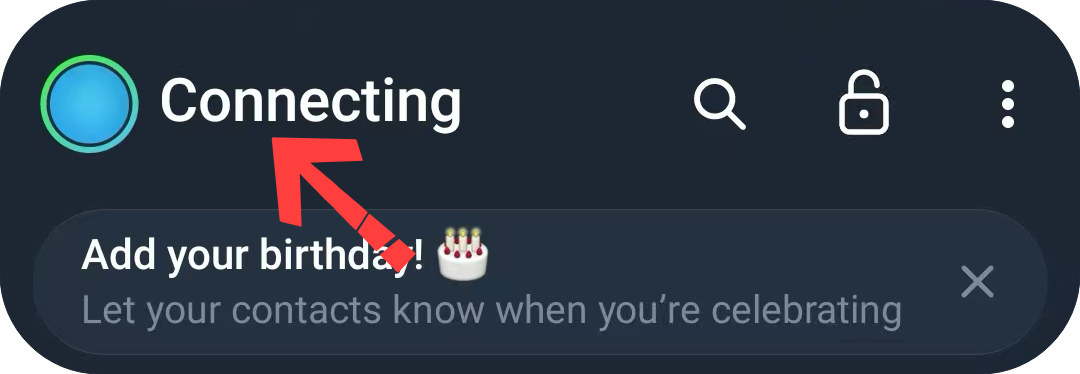
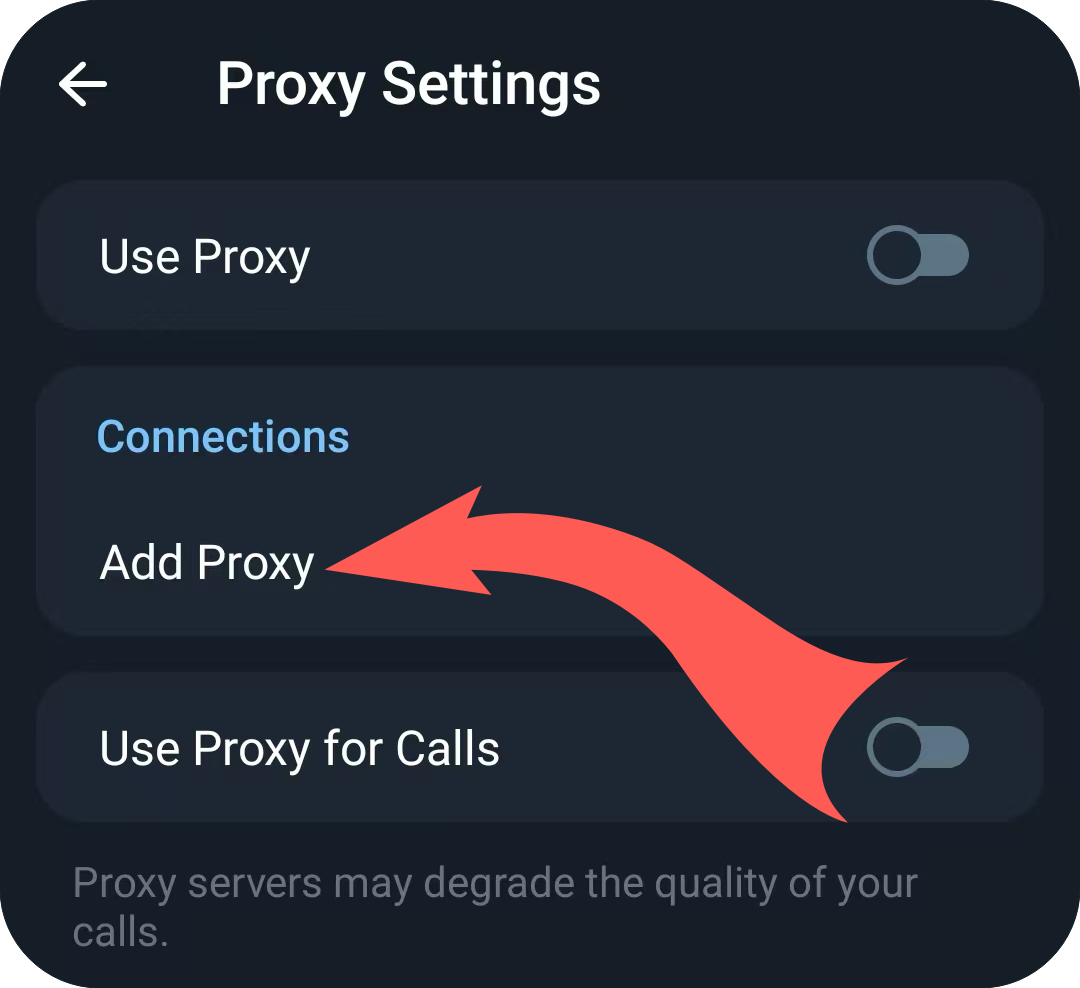
- Find "Proxy link", then choose "Add Proxy"
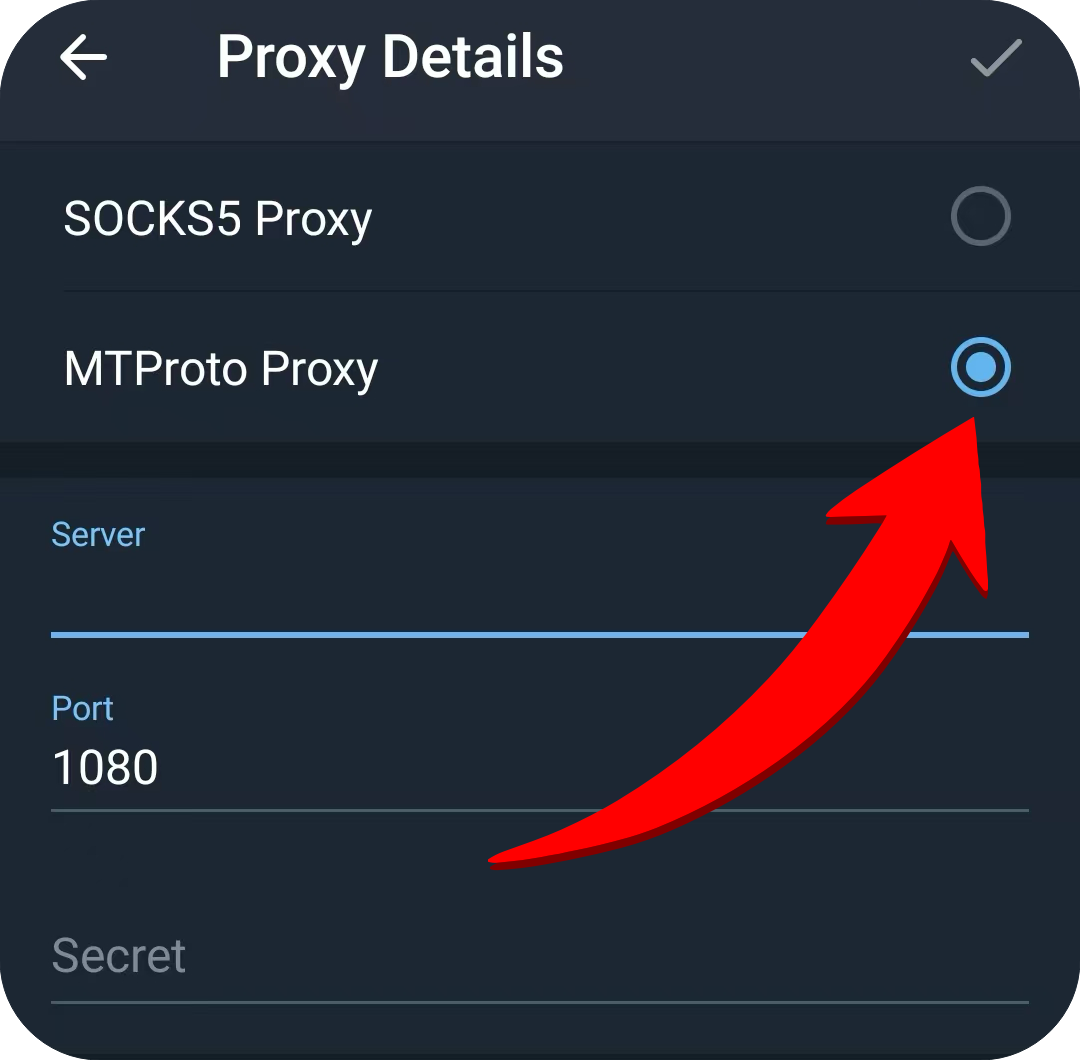
Step 2: Add and enable your MTProto proxy
- Tap "Add Proxy"
- Select proxy type: MTProto (do not choose SOCKS5 or HTTP)
- Carefully enter the server address, port, and secret (key)
- Confirm and enable the proxy – Telegram will start connecting via your dedicated MTProto proxy
Method 2: One‑Click Auto‑Configuration (Recommended)
- Open the one‑click configuration link in your browser
- The link will automatically redirect to Telegram and show a prompt
- Tap "Add Proxy" – configuration is done instantly. This is the easiest way to set up a working proxy for Telegram.
3. Troubleshooting Common MTProto Proxy Issues (Fix mtproto не работает)
1. What is an MTProto proxy?
MTProto proxy is the official proxy protocol developed specifically for Telegram. Compared to regular proxies, it offers better stability, anti‑censorship performance, and protects your communication privacy and security. It is the preferred Telegram proxy for users in restricted networks.
2. Connection failure? (mtproto telegram proxy not working – mtproto не работает)
- Double‑check the server address, port, and secret – any typo will break the connection
- Ensure the target port is open and not blocked by a firewall
- If the current node is blocked, switch to another MTProto proxy node (see our mtproto proxy list for alternatives)
- Check if your 3‑day free trial has expired – renew or get a new free MTProto proxy trial
- For advanced mtproto не работает troubleshooting, visit our Russia DPI & MTProto Fix Guide.
3. Secret error? (MTProto secret key issues)
The secret is a full string, usually starting with "ee" or "dd". Do not add spaces or extra characters – copy it completely to avoid omissions. An incorrect secret will cause the mtproto telegram proxy to fail authentication.
4. One‑click link doesn't work?
- Use Chrome or Edge for better compatibility
- Allow the browser to redirect to Telegram in system settings
- Copy the link and open it directly inside Telegram (paste into any chat and tap)
5. What if I typed "mtrproto" or "mtporoto" by mistake?
The correct spelling is MTProto. Common misspellings include mtrproto, mtporoto, mptproto, and мтпрото (Russian). You're in the right place – TGV provides official MTProto proxy services and setup guides.
6. Where can I find a free MTProto proxy list?
TGV provides a free MTProto proxy trial for 3 days. For a regularly updated mtproto proxy list, please visit our Help Center proxy list section or sign up for a trial to receive working proxies directly.
4. Who is this for?
- Users who need stable Telegram access under restricted networks
- Privacy‑conscious users who need secure Telegram connections via MTProto proxy
- Business users who rely on Telegram for daily work and require a reliable Telegram proxy
- Users who need a Telegram proxy only, not a full VPN
- Cross‑border workers, media operators, and anyone needing long‑term stable connectivity
🇷🇺 Бесплатный прокси для Telegram | 🇮🇷 پروکسی رایگان تلگرام | 🇨🇳 免费 MTProto 代理