Traditional MTProto is easily blocked by DPI? TGV has deployed the official tproxy-server architecture first. You can get exclusive Web-Proxy parameters directly after registration.
Claim 3-Day Free Trial →Web-Proxy is a brand new protocol. Currently, only the following official clients support it. If you cannot find the "WEB" option in your App, it means your version is too old. Please upgrade first:
- Telegram Desktop: Version ≥ 7.1.0 (PC)
- Android: Requires the latest Telegram Beta version
- iOS: Official rollout is in progress, please keep your app updated
Step 1: Get Your Web-Proxy Parameters
After you purchase or try the Web-Proxy service at TGV, you will receive a very special set of parameters. Unlike traditional proxies, it has no port number.
You will receive the following two strings (usually shown in the email or dashboard):
- Proxy server: A domain like
proxy.example.comorproxy.example.com/path. Note: Do NOT include https:// or port number. - Proxy secret: A 32-character hexadecimal string or a specific format secret (e.g.,
000102030405060708090a0b0c0d0e0f).
Step 2: Configure Telegram Client
Method 1: One-Click Automatic Import (Fastest)
TGV dashboard or email will include a link like https://t.me/webproxy?server=...&secret=....
- Copy this link on your phone or computer.
- Send it to "Saved Messages" or any chat on Telegram.
- Click the link directly, and Telegram will automatically pop up a prompt.
- Confirm the addition to complete the configuration.
Method 2: Manual Setup (Step-by-Step)
If you cannot use the one-click link, please follow these steps to configure manually:
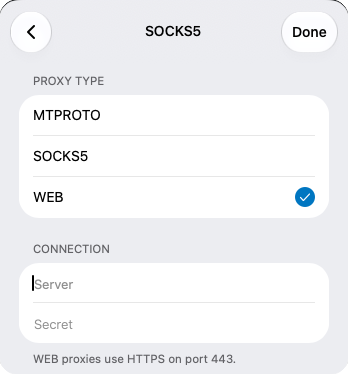
- Open Telegram, go to Settings -> Data and Storage -> Proxy.
- Click the "Add Proxy" button.
- The most critical step: in the type selection, you must choose WEB (do not choose MTPROTO or SOCKS5).
- In the Server field, enter the domain you received (e.g.,
proxy.example.com). - In the Secret field, paste the 32-character secret you received.
- Click Done to save, and enable the proxy.
Step 3: How to Confirm Successful Configuration?
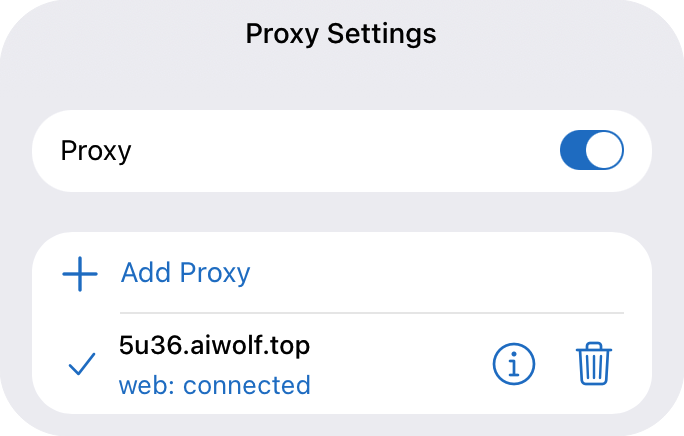
After configuring, return to the Proxy Settings page. If you see "web: connected" like the screenshot below, it means you have successfully connected to Telegram via the official Web-Proxy.
At this point, your traffic is disguised as regular HTTPS web browsing. DPI firewalls cannot identify that you are using a proxy, greatly reducing the risk of being blocked.
Step 4: FAQ
1. Why is there no "WEB" option in my Telegram?
As mentioned above, your client version is too old. Please download the latest desktop version from the official Telegram website or join the Beta program on Google Play.
2. What to do if it says "Proxy connection failed"?
- Check if the Server field contains extra
https://or port number (Web-Proxy only needs the plain domain). - Check if the Secret is copied completely without any extra spaces.
- Network fluctuations can occasionally cause connection failures. Try a few more times or wait a few minutes.
3. Which is better, Web-Proxy or traditional MTProto?
Web-Proxy is the latest official underlying architecture, with far superior anti-blocking capabilities compared to traditional MTProto. In regions with severe censorship like Iran and Russia, Web-Proxy survives much longer. However, for older devices that do not support this protocol, MTProto is still needed as a backup.